Overview
This guide explains how to link a physical loyalty card to an existing member within PowerEPOS. This process is required to ensure loyalty cards are correctly associated with member accounts and can be used during transactions.
Note: This guide focuses on members who have already signed up online.
Step-by-Step Instructions
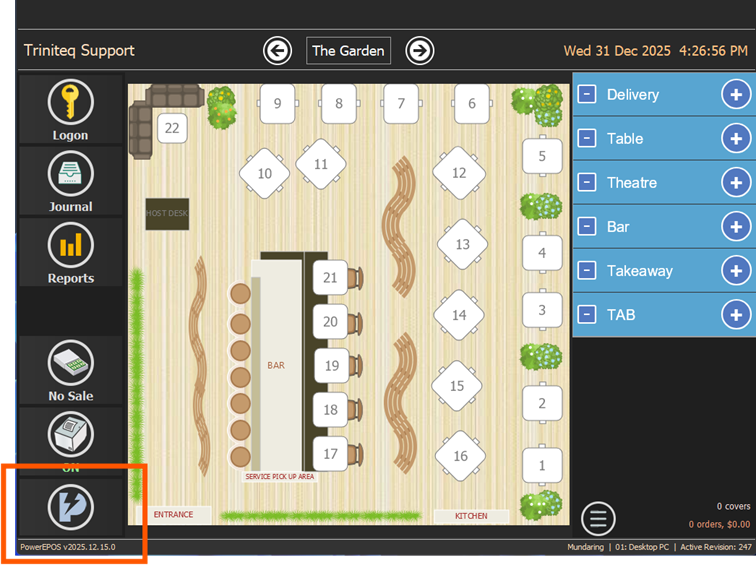
- From the main POS home screen, select the PowerEPOS menu button.
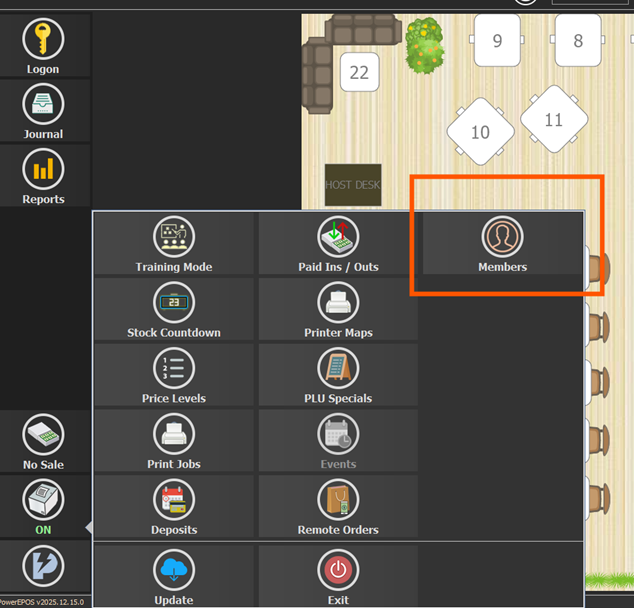
- Select Members from the menu.
- Select Create if the member has not signed up online or Update if the member has already signed up online.
For this guide, select Update.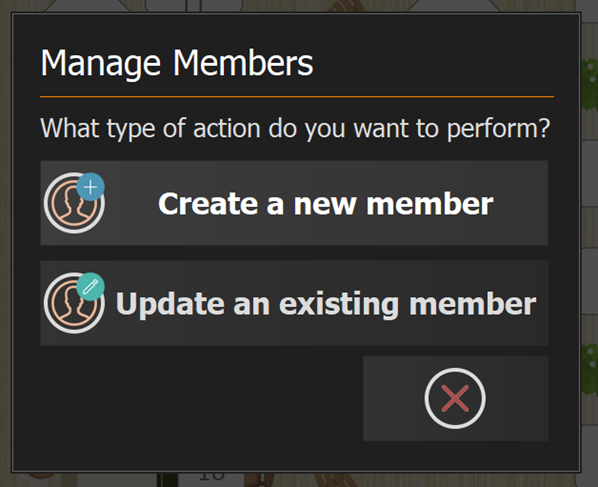
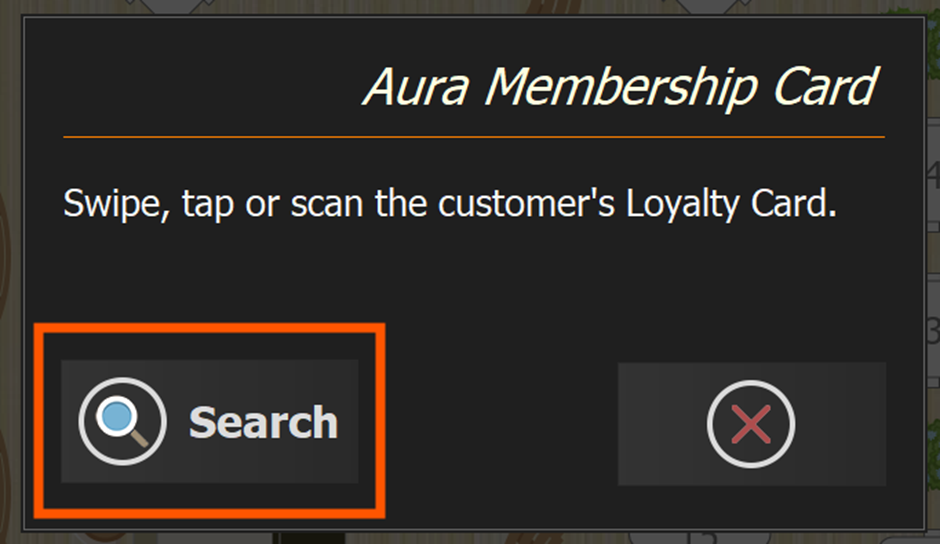
- When prompted to swipe or scan the loyalty card, Do not scan the card, Select Search to manually look up the member instead.
- Search for the member using one of the available fields (e.g. name, email, phone number).
Important: Only one search field can be used at a time.
Matching results will appear on the right-hand side of the screen, Select the correct member and press the Tick (✓) to continue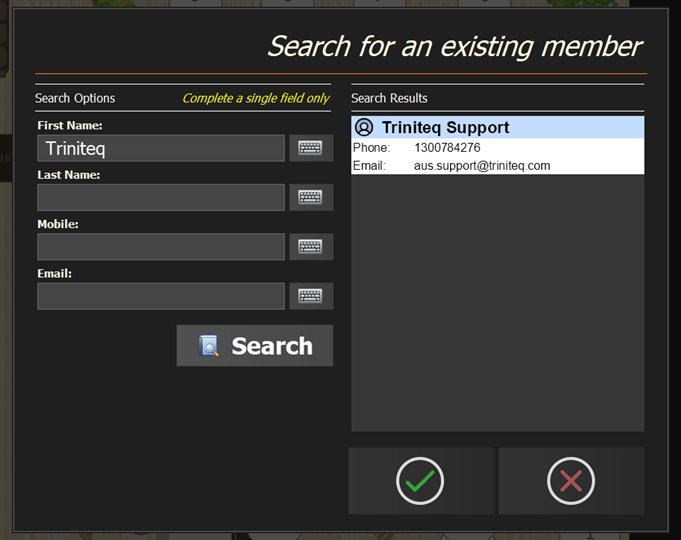
- From the Member Update screen select the Plus (+) icon under Membership Cards and when prompted, scan the physical loyalty card.
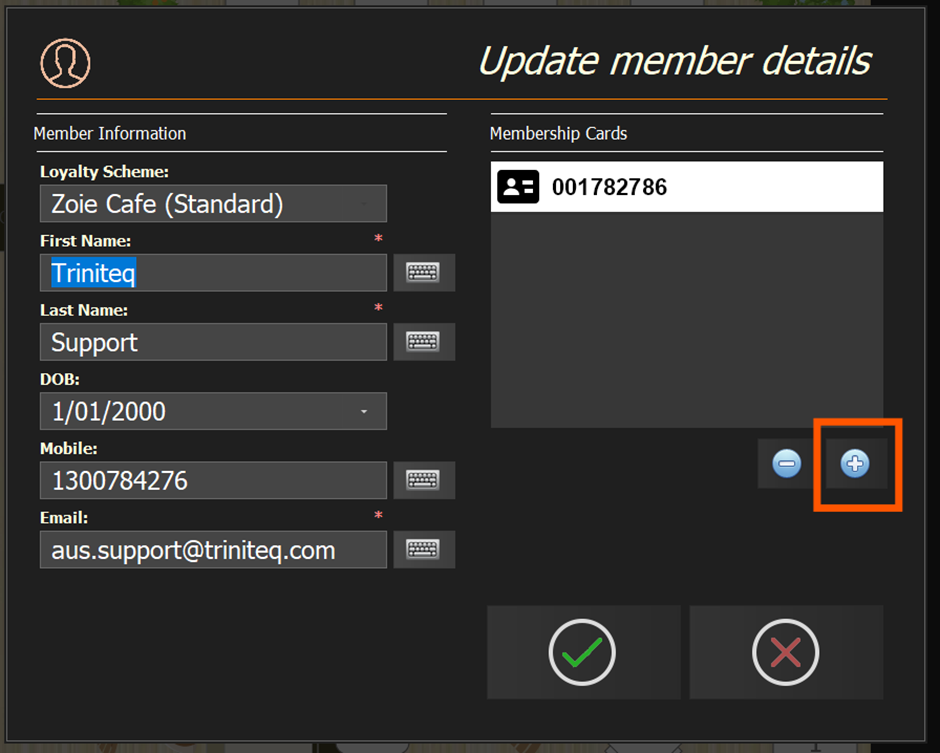
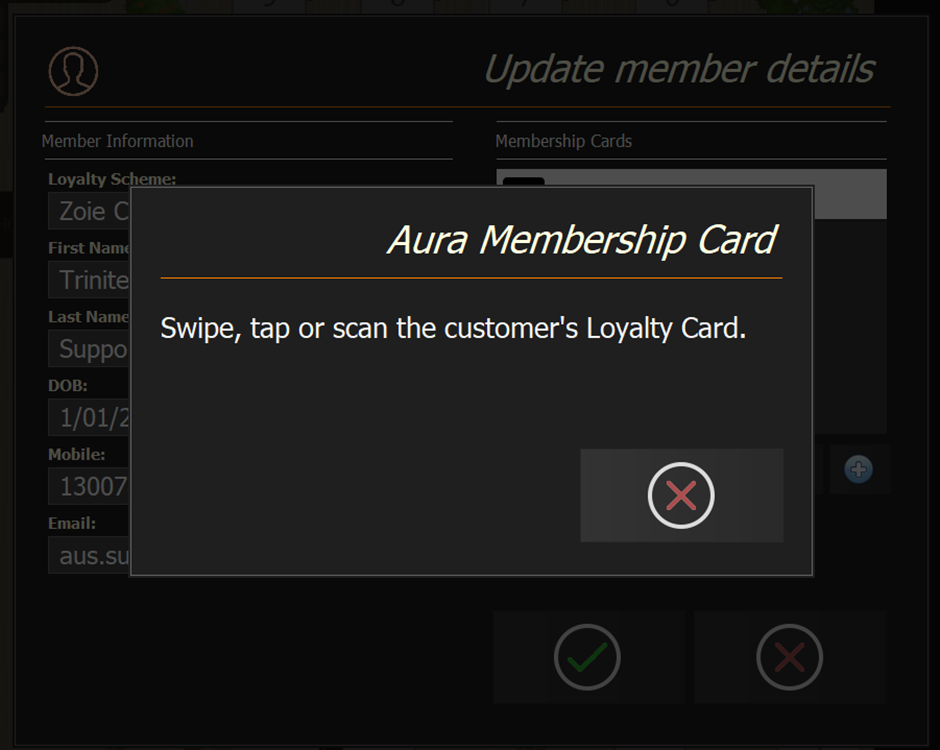
- The card number will then appear in the membership card list and press the Tick (✓) again to confirm and save changes.
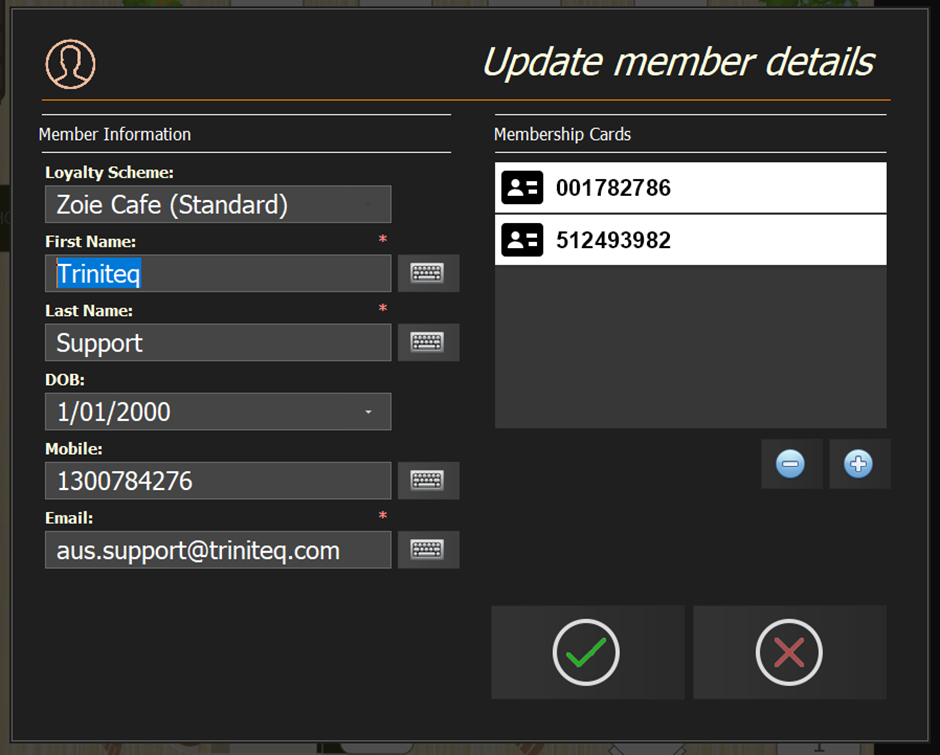
The member account is now updated.
- The loyalty card can now be used to:
- Identify the member at POS
- Link transactions to the member
- Apply loyalty benefits as configured
Was this article helpful?
That’s Great!
Thank you for your feedback
Sorry! We couldn't be helpful
Thank you for your feedback
Feedback sent
We appreciate your effort and will try to fix the article