Summary
Time periods are pre-configured date and time ranges used to automate specials, discounts, surcharges, and button restrictions on the POS. The most common use case is applying Public Holiday Surcharges automatically on the relevant days. This article describes how to create a new time period or edit an existing one, and publish it to the POS.
Before you begin
- You must have access to PowerEPOS System Manager with permissions to edit Periods.
- Have the full list of dates and time ranges ready before starting (e.g. all public holidays for the year ahead).
- Confirm whether the period needs to be applied to an existing configuration (edit) or set up from scratch (insert).
Procedure
- From the main system screen, go to Periods.
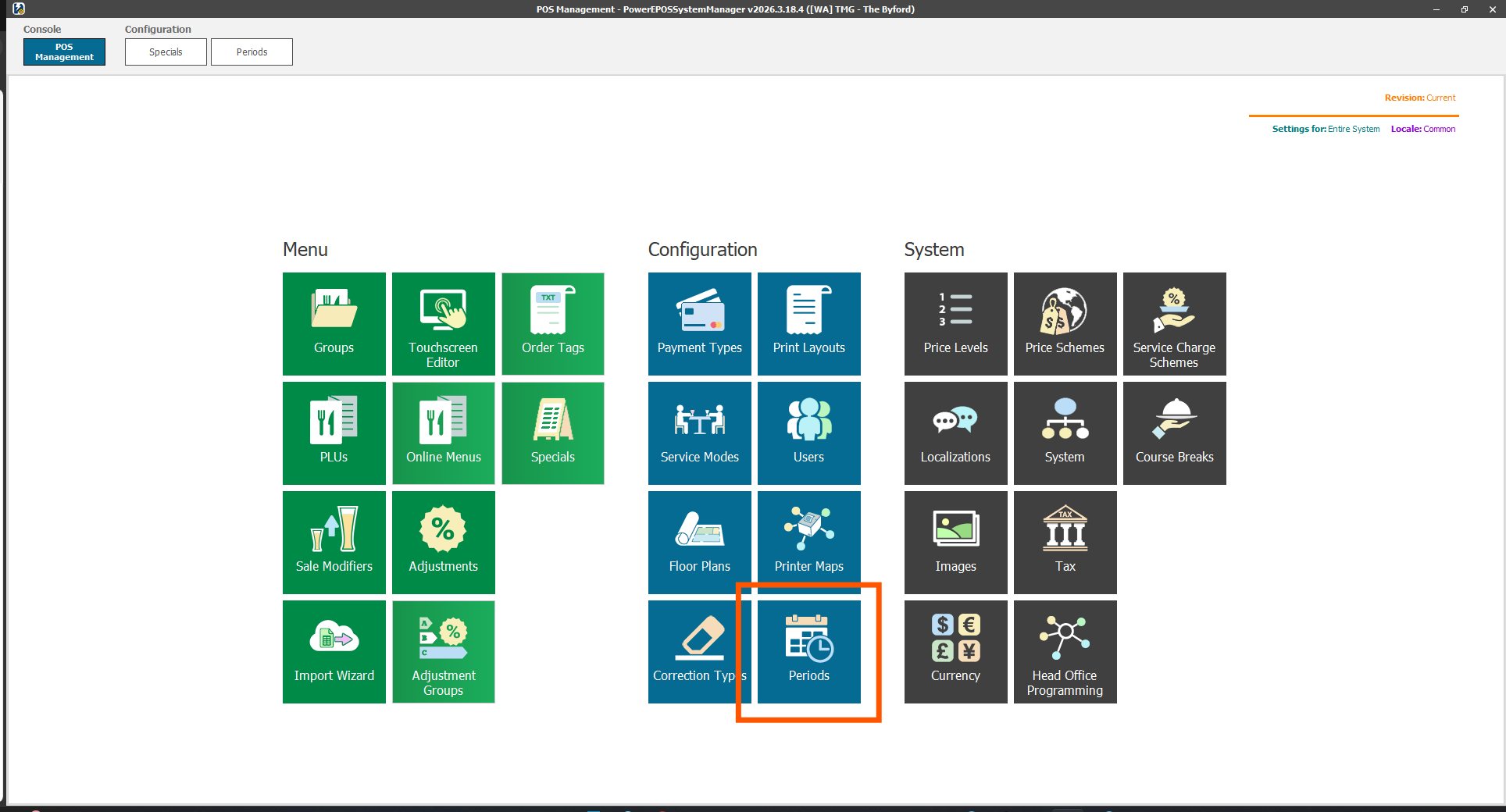
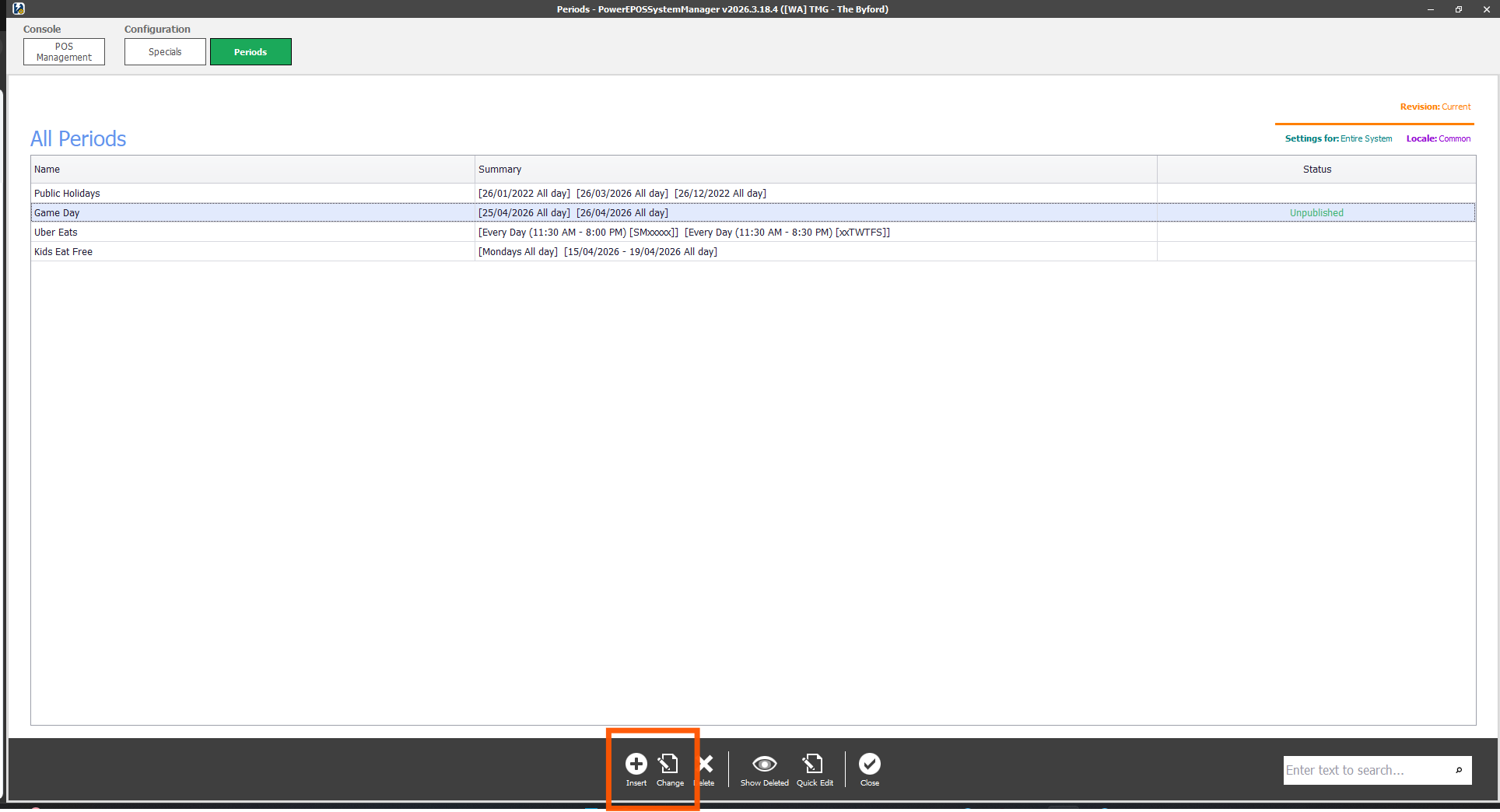
- Do one of the following:
- To edit an existing period, select the period from the list and click Change.
- To create a new period, click Insert.
- If creating a new period, enter a name at the top of the screen, then configure the dates by inserting or deleting records in the Time Ranges screen.
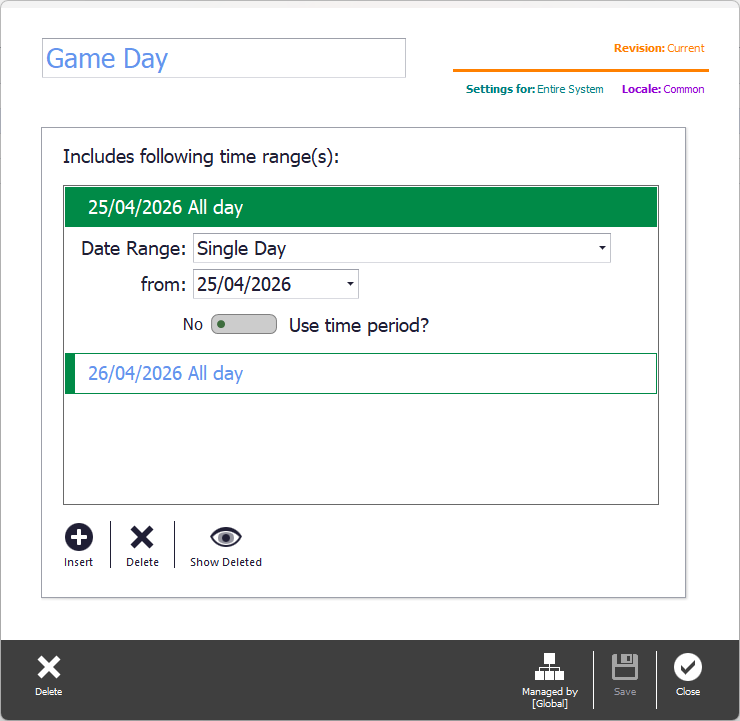
- Click Save to complete the configuration, then click Publish to push the period live to the POS.
Time periods on their own do nothing — they must be linked to a special, discount, surcharge, or button restriction to take effect.

Changes are only reflected on POS terminals after clicking Publish. Saving alone will not push the period live.

Multiple date ranges can be added to a single period (for example, all public holidays for the year can sit under one "Public Holiday Surcharge" period).

Review your time periods annually to add new public holiday dates before they occur.
Was this article helpful?
That’s Great!
Thank you for your feedback
Sorry! We couldn't be helpful
Thank you for your feedback
Feedback sent
We appreciate your effort and will try to fix the article