Summary
This article describes how to create a special (temporary price change) for an existing product using the PowerEPOS System Manager and push it live to the POS terminals.
Before you begin
- You must have access to PowerEPOS System Manager with permissions to edit Specials.
- The product (PLU) you are creating the special for must already exist in the system.
- Have the start date/time, end date/time, and sale price ready before starting.
Procedure
- Log in to PowerEPOS System Manager.
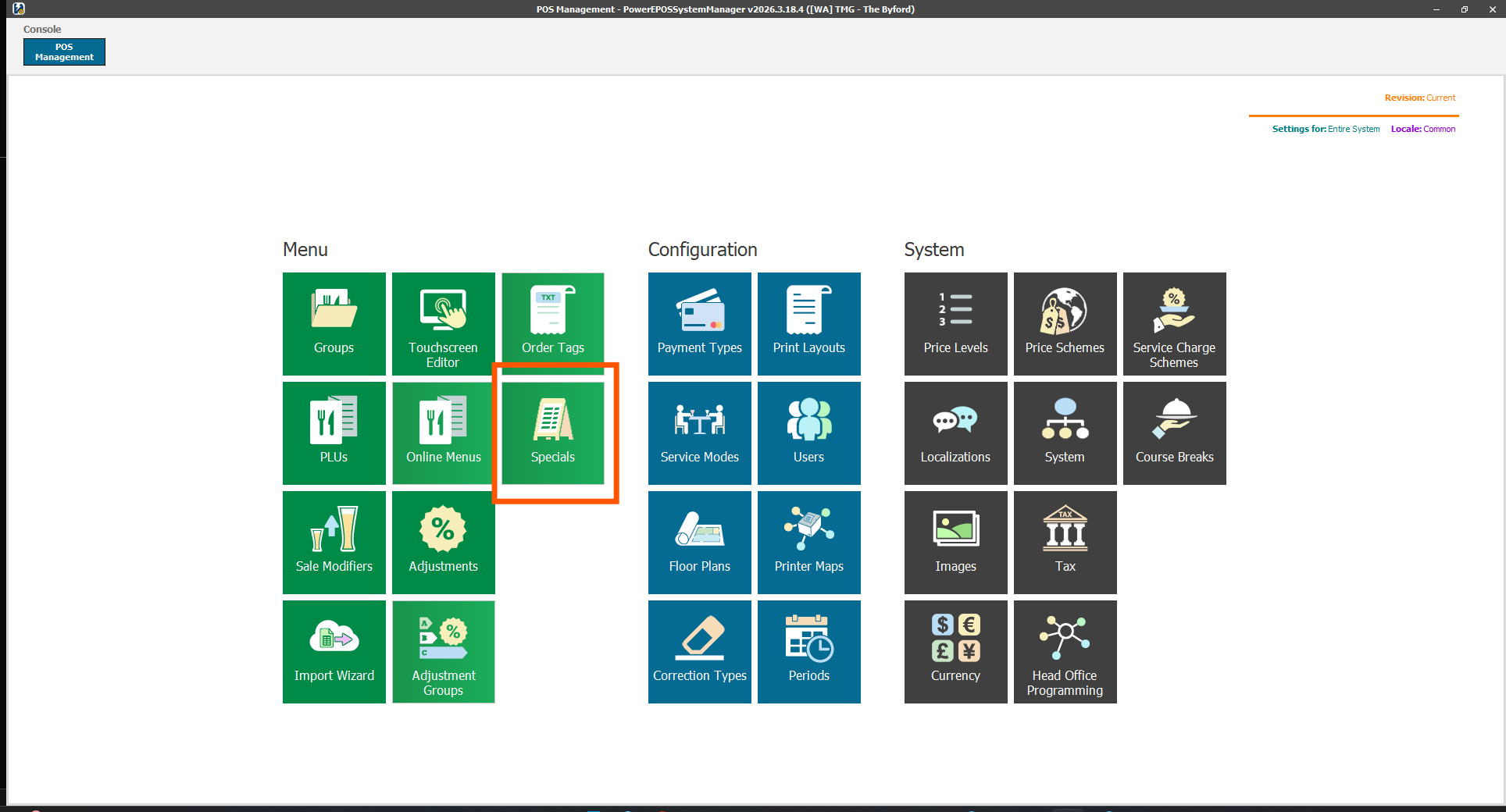
- Go to Specials.
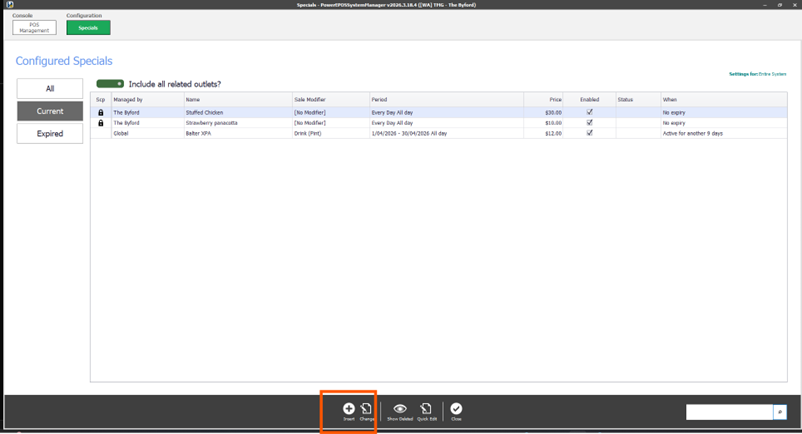
- Click Insert to create a new special.
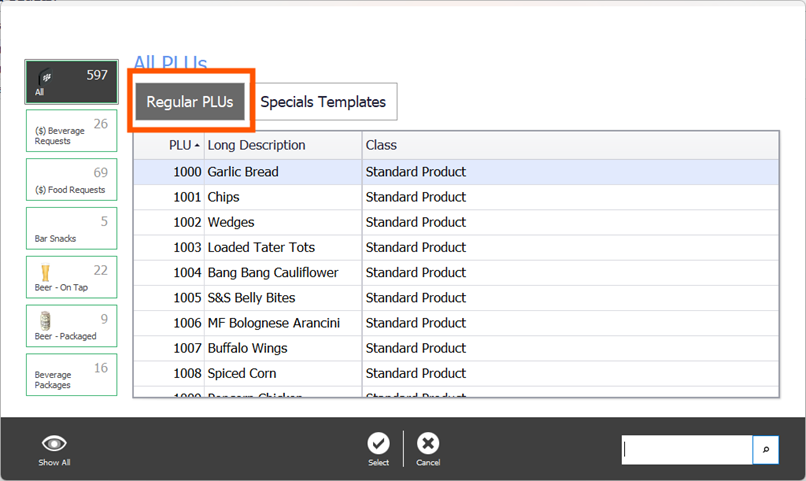
- Because this special is a price change to an existing product (not a new item), select the Regular PLUs tab.
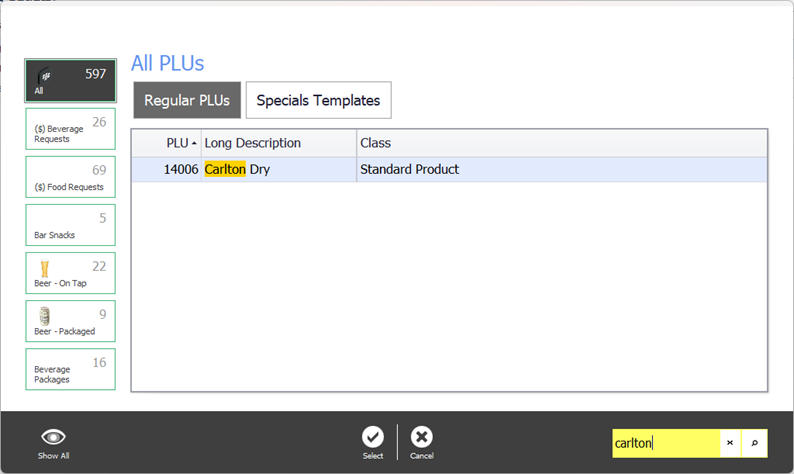
- Locate the PLU in the list that you want to create the special for.
- Select the Sale Modifier size (if applicable), then set the price and valid time period for the special. Your time period can be created custom from this screen or choose a pre-configure time period that already exists in POS from the list.
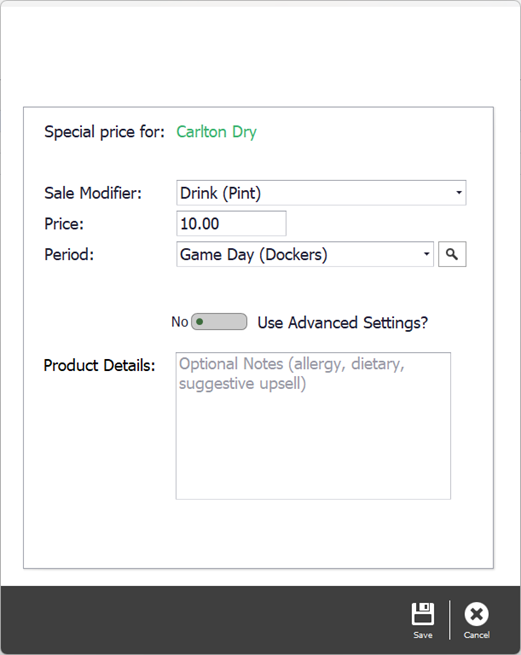
- Click Save to create the special, then click Save on the main screen to push the special live to the POS.
Changes are only reflected on POS terminals after the second Save on the main screen — the first save only stores the special within System Manager.

The Sale Modifier size is only required for products configured with multiple sizes (e.g. Small / Medium / Large). For single-size products this step can be skipped.

Specials automatically activate and deactivate based on the valid time period set — no manual action is required to start or end them.
Was this article helpful?
That’s Great!
Thank you for your feedback
Sorry! We couldn't be helpful
Thank you for your feedback
Feedback sent
We appreciate your effort and will try to fix the article