Product: PowerEPOS
Category: Payments / Gift Cards
Audience: Operators / Front-of-house staff
Overview
This article explains how to process a gift card or voucher redemption through PowerEPOS at the point of sale.
Processing a Gift Card Redemption
- Create a sale in POS as you normally would.
- Locate the voucher/gift card payment button within the POS payment screen.
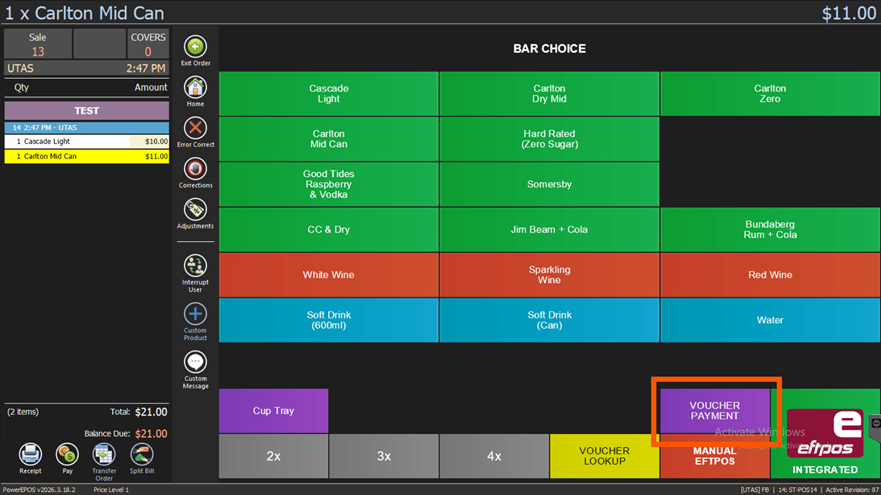
- Select the gift card typebased on the card being presented and how the data will be entered into POS.
For most physical gift cards, select the Printed Voucher Code option and enter the card number manually.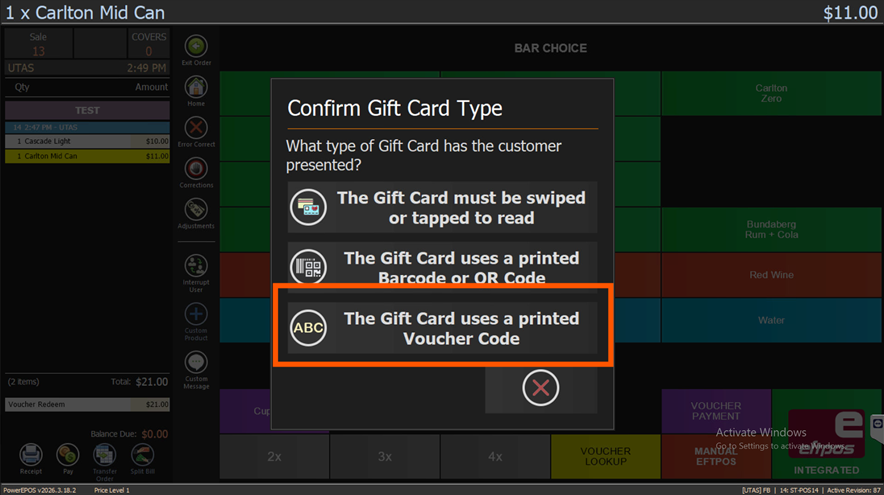
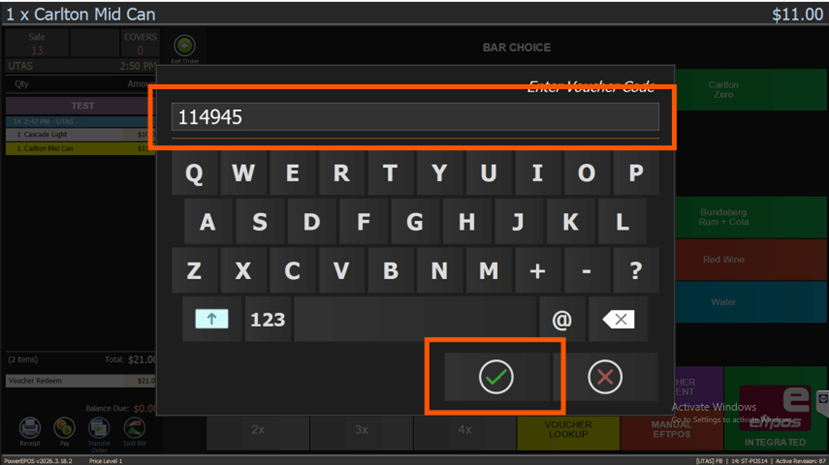
- Enter the card number using the on-screen keyboard, then press the tick (✓) to confirm.
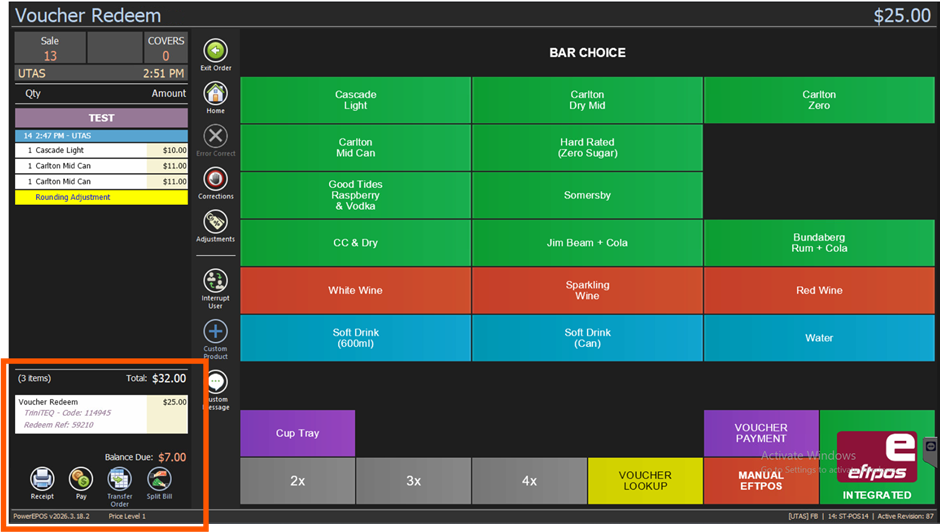
- PowerEPOS will automatically redeem the maximum available balance from the gift card and apply it as a payment to the open order.
- The applied payment amount will appear in the bottom-left corner of the screen.
- Any outstanding balance remaining will also be displayed there.
- To complete the transaction, process any remaining balance using another payment method as required.
Cancelling a Gift Card Payment
If a gift card payment has been applied in error:
- Click on the gift card payment line in the payment summary.
- Select Cancel to remove the payment from the order.
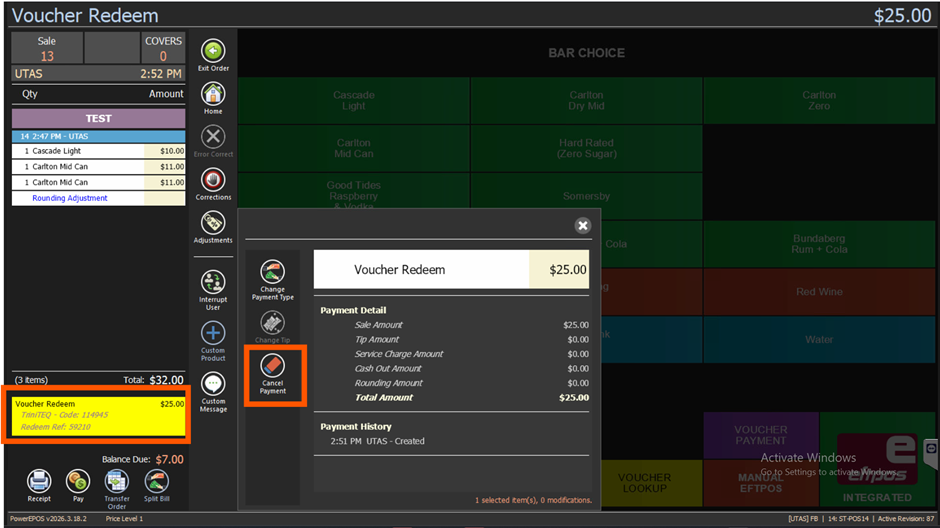
If the gift card balance does not cover the full order amount, an additional payment method will be required for the remainder.
*For further assistance, contact Triniteq Support.*
Was this article helpful?
That’s Great!
Thank you for your feedback
Sorry! We couldn't be helpful
Thank you for your feedback
Feedback sent
We appreciate your effort and will try to fix the article