This guide explains how to connect a Zeller EFTPOS terminal to PowerEPOS as a direct (integrated) payment provider. There are two parts: first you activate Zeller as the credit card provider in System Manager, then you pair the physical terminal with your POS. Once both are complete, card payments are sent from PowerEPOS to the Zeller terminal automatically and the result is returned to the sale.
Before you begin
Make sure you have the following ready:
- PowerEPOS version 2026.5.7.5 or newer.
- An active Zeller account and at least one Zeller terminal.
- Your payment types configured in PowerEPOS (only required if you plan to map card types to specific payment types).
- The Zeller terminal turned on, connected to Wi-Fi or mobile data, and signed in to your Zeller account.
Activate Zeller in PowerEPOS System Manager
- In System Manager, go to System and select the POS terminal that will use the Zeller integration.
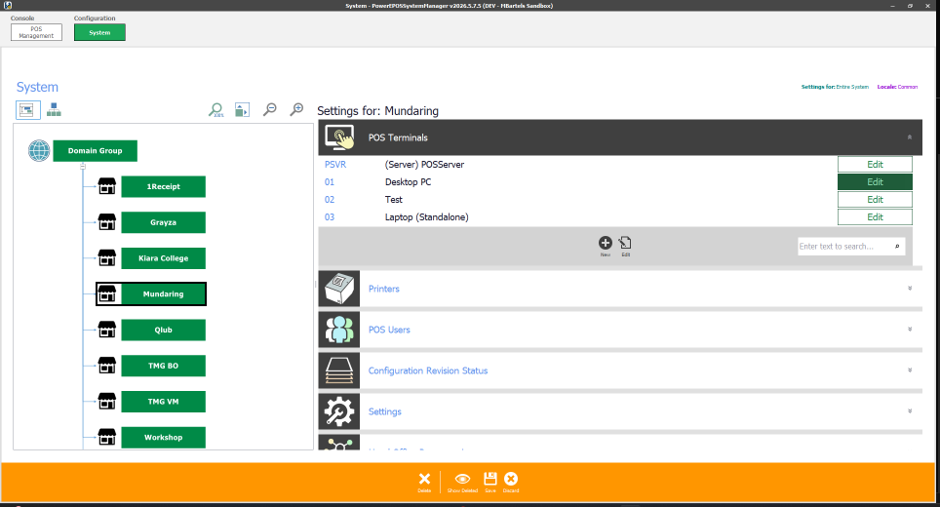
- Open the Credit Card tab and set the Credit Card Provider to Zeller.
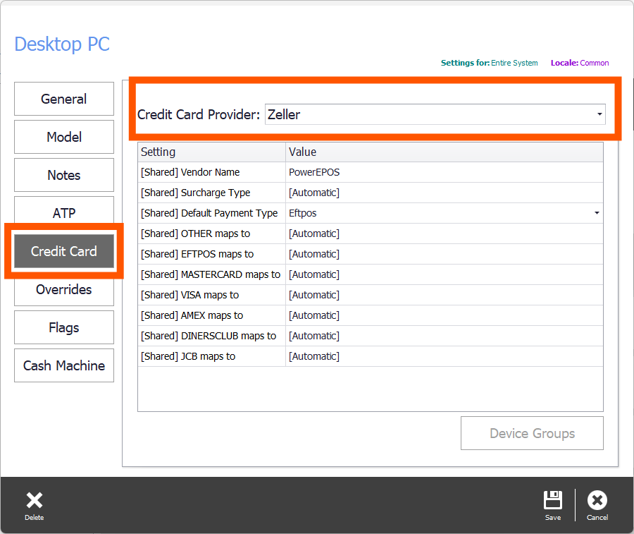
- Configure the interface settings as required, or keep the default configuration shown above. To combine card types into a single total, set each option to a payment type you have already configured under Payment Types.
- When you have finished, press “Save”.
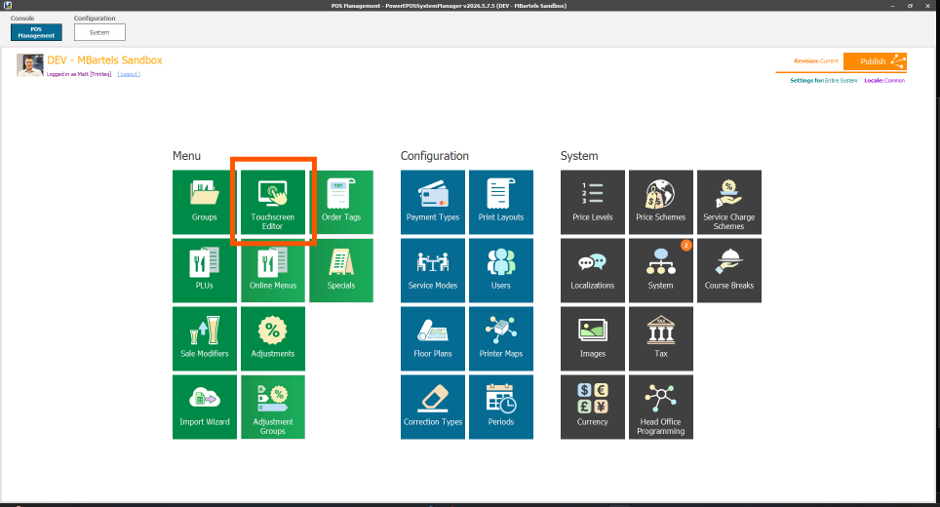
- Before publishing, make sure your POS touchscreen has a Credit Card Payment button. To check, open the “Touchscreen Editor”.
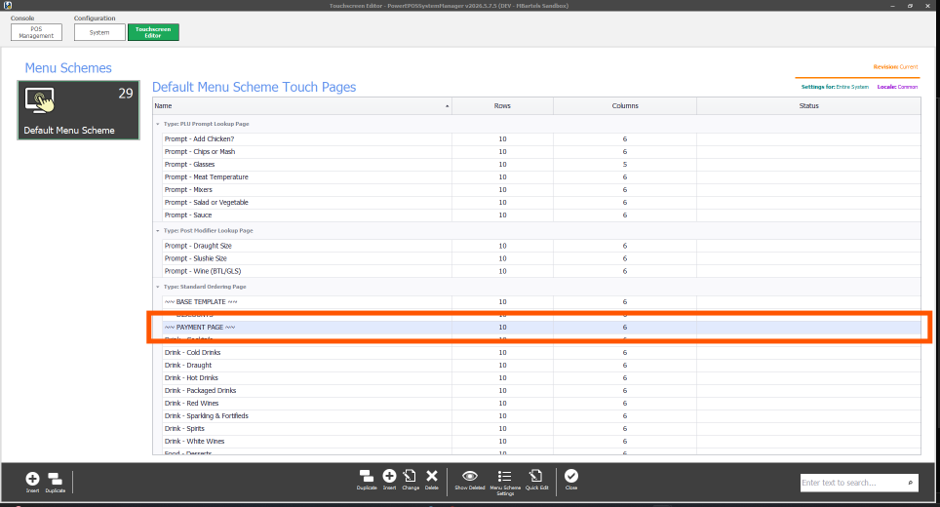
- Select your payment page to load it on screen.
- Select your payment/EFTPOS button and set the button type to “Credit Card Payment Key”. Leave the Card Present Status set to “Card is present” (the default). To also allow manual card entry (MOTO), add a second button with the Card Present Status set to “Not present”.
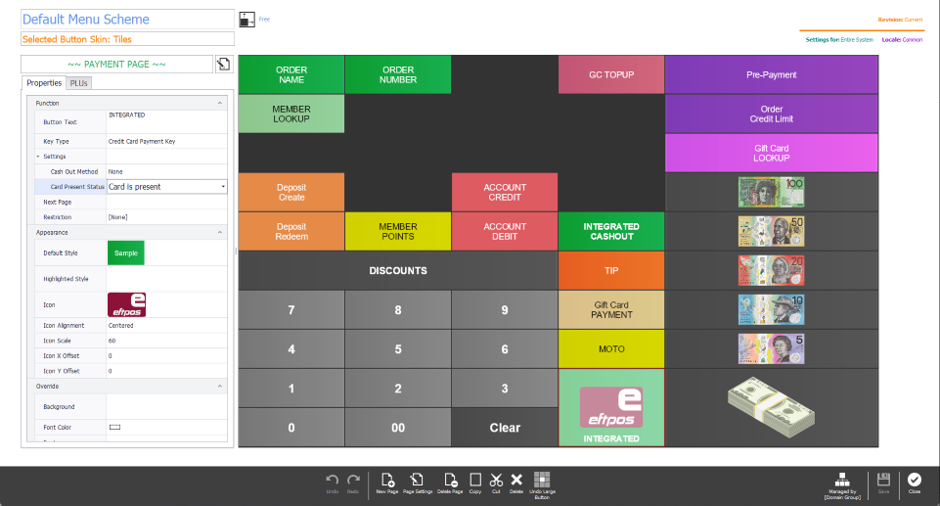 Note: Cashout is not currently supported by Zeller.
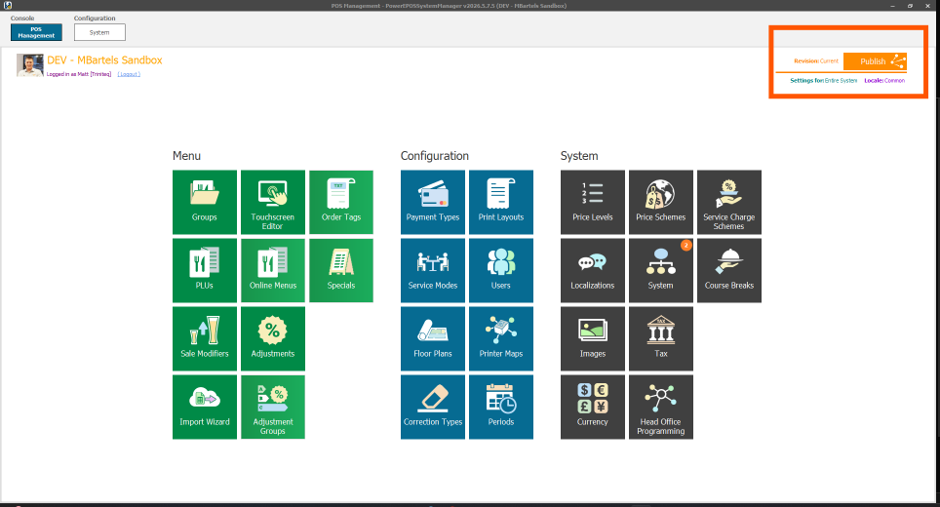
 - Save your changes and publish to push the configuration out to your POS in the venue.
Pairing your Zeller terminal in PowerEPOS
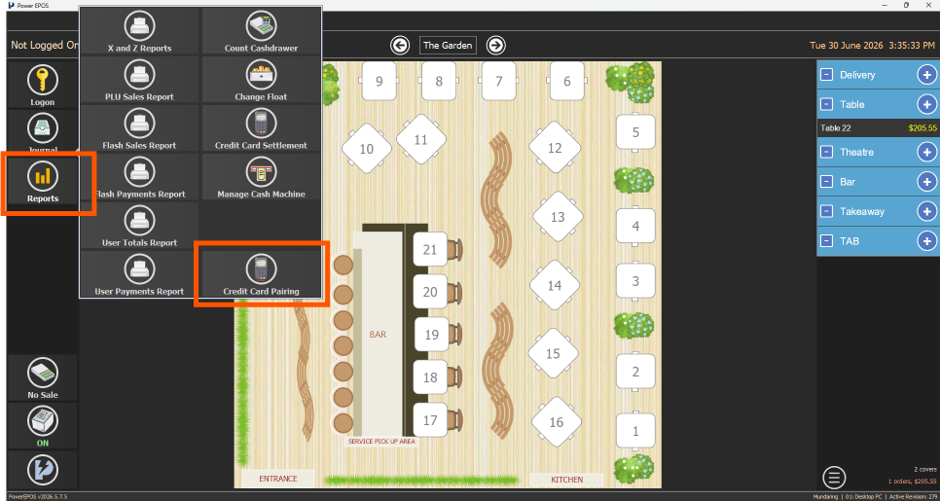
- In PowerEPOS, go to “Reports” > “Credit Card Pairing”. Log in with your User PIN if prompted.
- The Zeller setup screen is displayed.
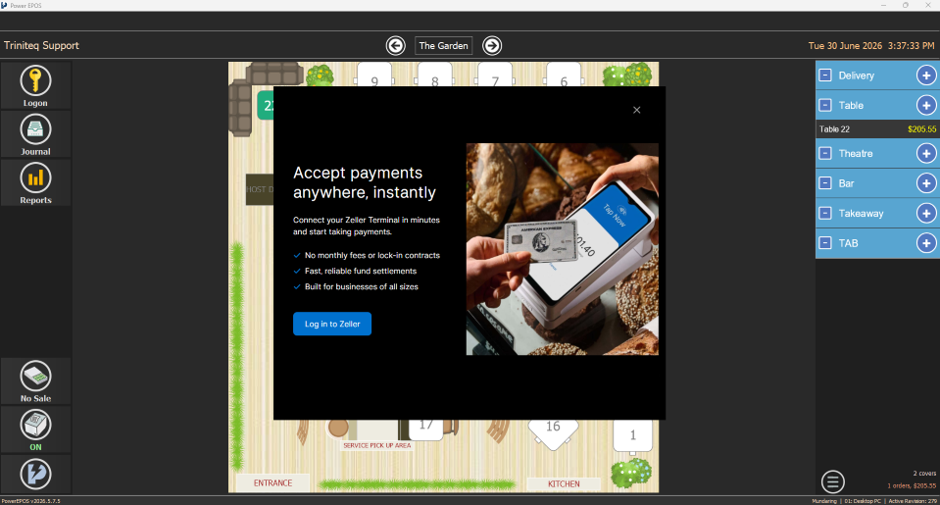
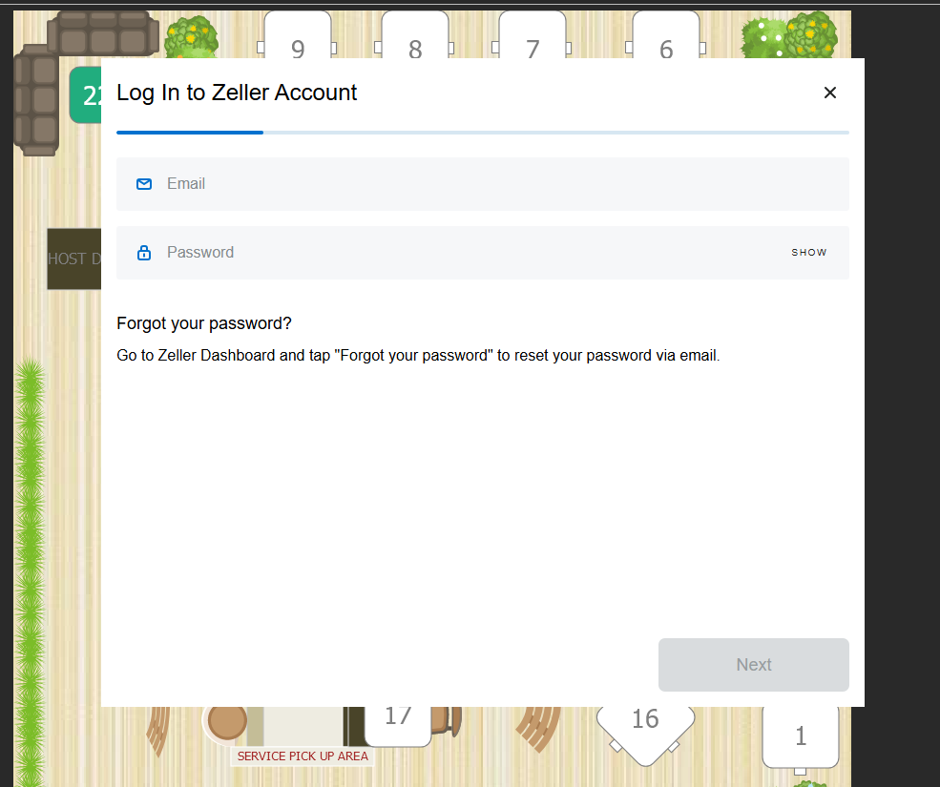
- Select “Log in to Zeller” and enter your Zeller email and password.
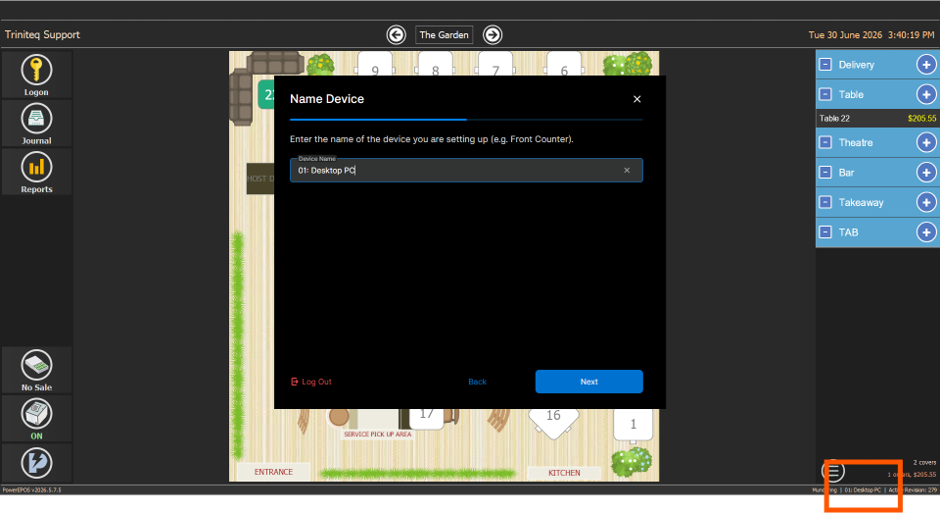
- Give the device a name. We recommend using the same name as the POS terminal to make reporting easier. You can find the POS device name in the bottom-right corner of PowerEPOS.
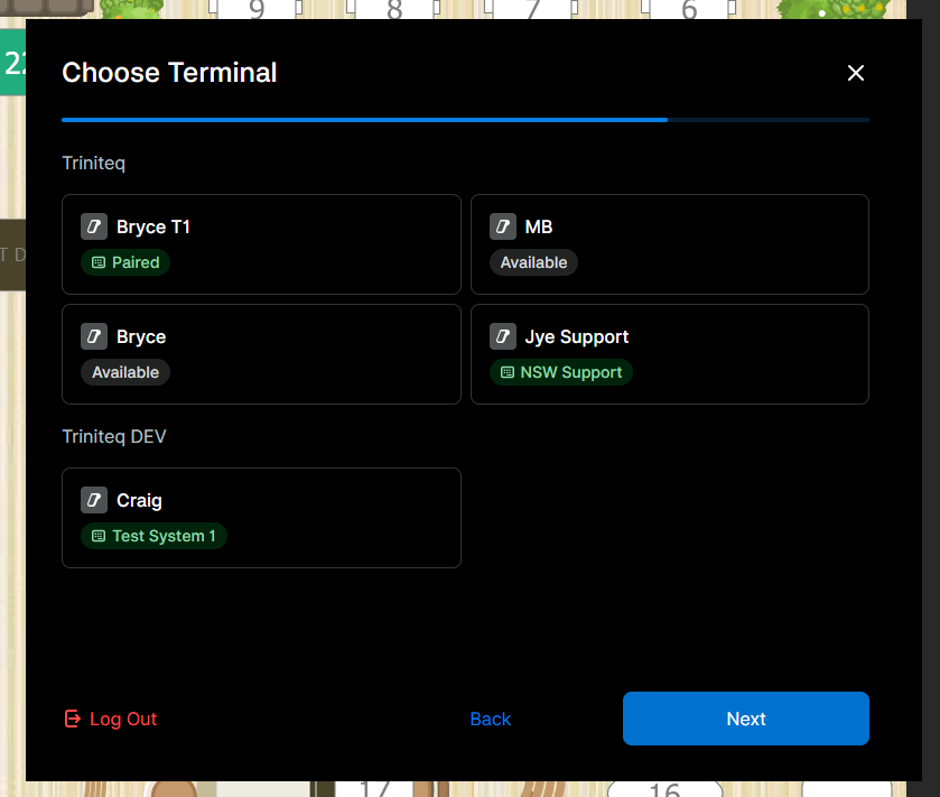
- Select the Zeller terminal to pair with your POS.
- When pairing is complete, close the window using the cross (×) icon in the top-right corner.
Done! Your POS is now paired with Zeller. You can process integrated card payments directly from the POS.
Was this article helpful?
That’s Great!
Thank you for your feedback
Sorry! We couldn't be helpful
Thank you for your feedback
Feedback sent
We appreciate your effort and will try to fix the article