Overview
This article explains how to upload and manage advertising images displayed on customer-facing POS screens through the Triniteq Platform.
Before You Begin
- You'll need an active PowerEPOS account.
- First-time users may be prompted to request access. If this occurs, complete the request and contact Triniteq Support to have it approved.
Steps
- Log in to Platform - Go to https://platform.triniteq.com and sign in with your PowerEPOS account.
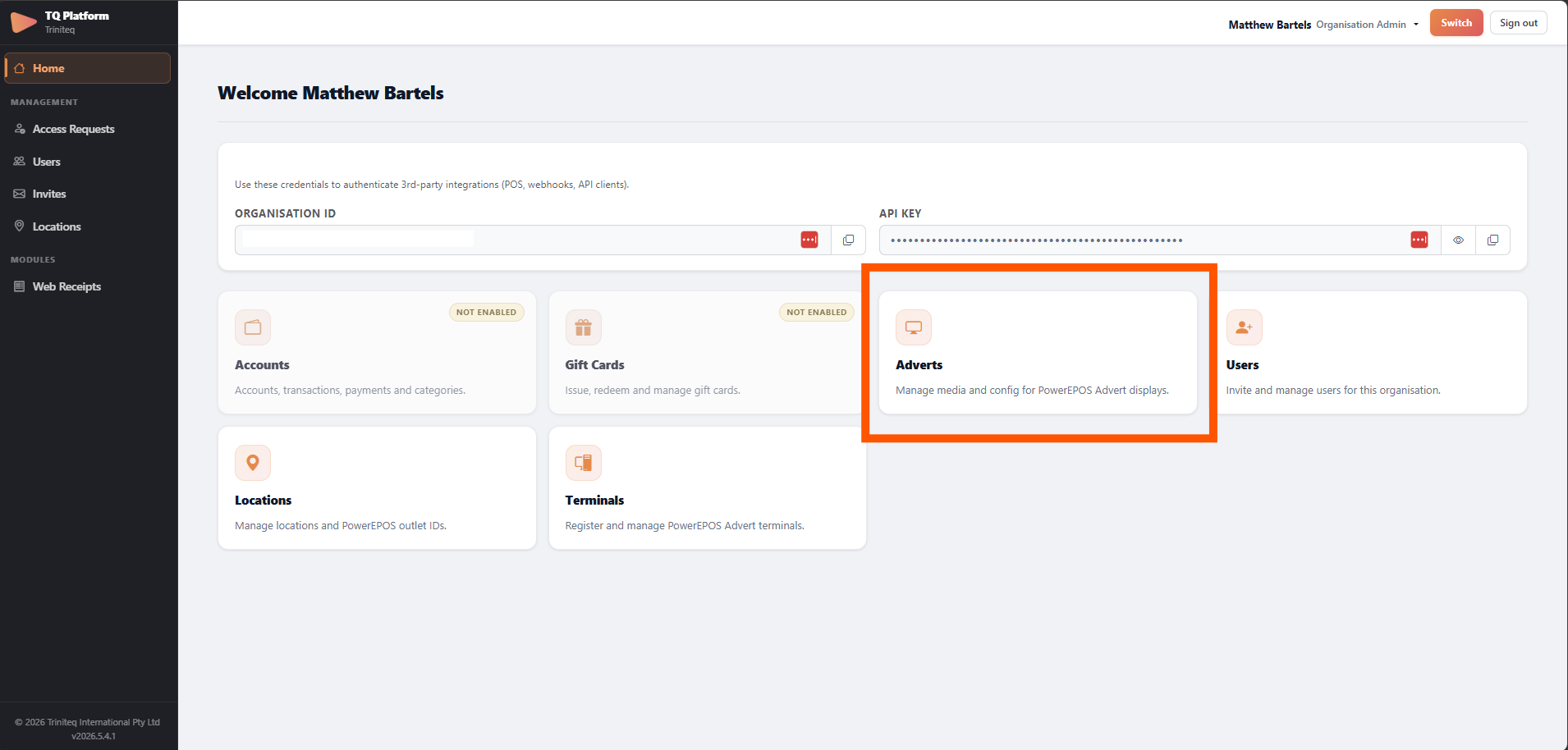
- Open the Adverts menu - From the dashboard, select Adverts.
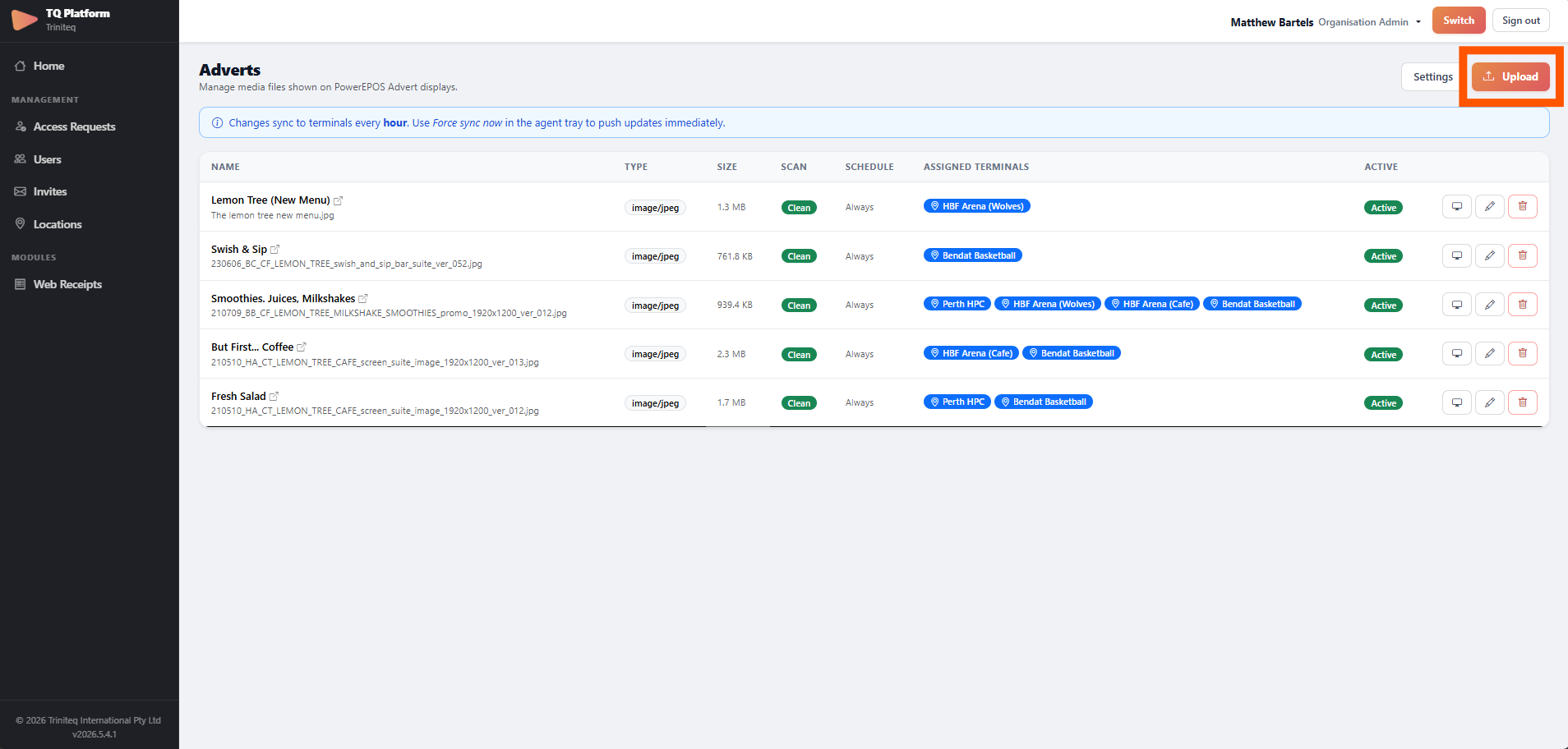
- Upload a new image - Click Upload, then Select File to choose the image from your local PC.
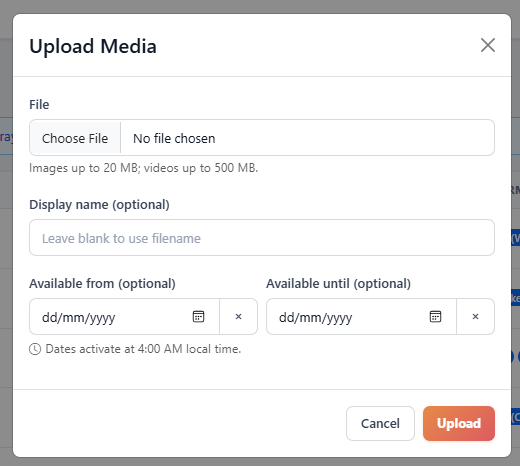
- Enter a display name - Use a name that will help you easily identify the image in future.
- (Optional) Set an availability date range - You can set a "From" date, an "Until" date, or both, to control when the image is active. Either field can be used independently.
- Confirm the upload - Click Upload to complete the process.
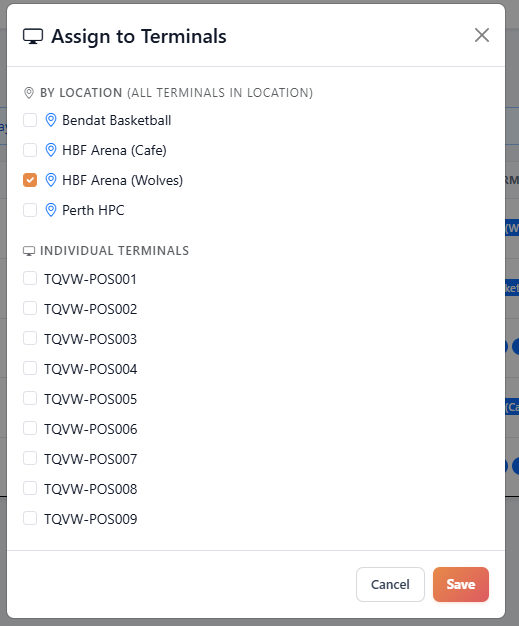
- Assign devices - Once the upload completes, you'll be prompted to choose where the image should display. You can select any combination of locations and individual POS terminals.
- Wait for sync - The image will appear on the selected POS terminals the next time they sync with the cloud server.
Scheduled times use 4am as an approximate cutoff. Images become enabled or disabled at the next POS sync after 4am on the relevant date.
Any image older than 30 days past its "From" date is automatically deleted from the system.
Was this article helpful?
That’s Great!
Thank you for your feedback
Sorry! We couldn't be helpful
Thank you for your feedback
Feedback sent
We appreciate your effort and will try to fix the article